Communicate — Simple Guide
This guide explains the Communicate part of the system in plain, everyday language. No technical words. If you can use email, you can use this.
Communicate is where you send emails and texts to your clients, and see everything that's ever been sent. It has these parts:
- Templates — reusable email designs
- Campaigns — sending an email to many people at once
- Campaign Performance — how your campaigns did
- Segments — saved lists of "who to send to"
- SMS — sending text messages
- Communication Log — everything ever sent, in one place
- Customer Care Reminders — automatic emails for renewals
- Automations & Workflows — the advanced, optional stuff
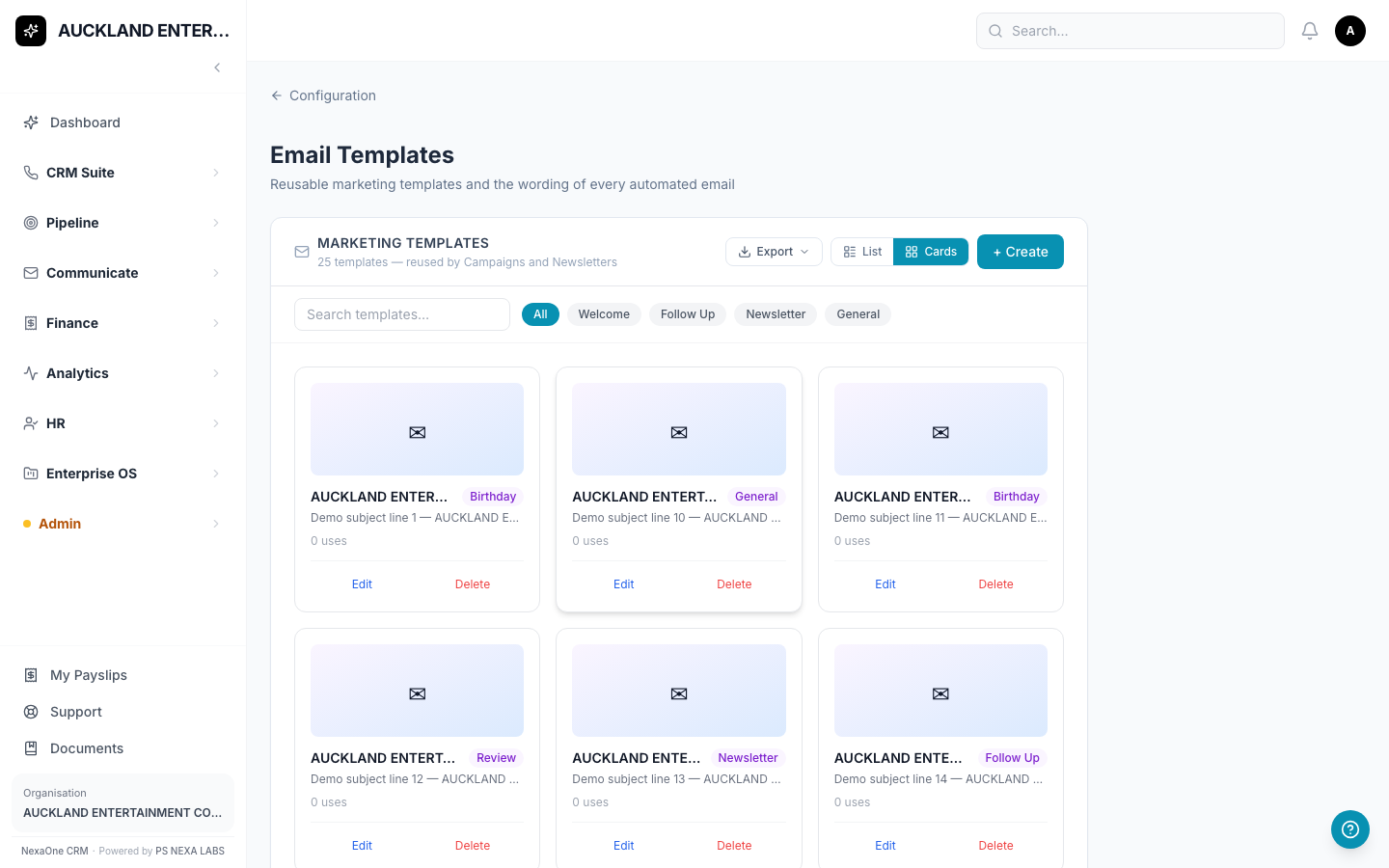
1. Templates
What is a Template?
A reusable email design — a subject line and a body — that you can send again and again, instead of writing the same email from scratch each time.
Where do I find it?
Click Settings, then Email Templates.
How do I create one?
- Click + New Template.
- Give it a name (for your own reference), a subject line, and write the email body.
- Save.
Tip: You can use {{first_name}}, {{last_name}}, or {{email}}
anywhere in your subject or body, and each will automatically be replaced
with that person's actual details when the email is sent.
2. Campaigns
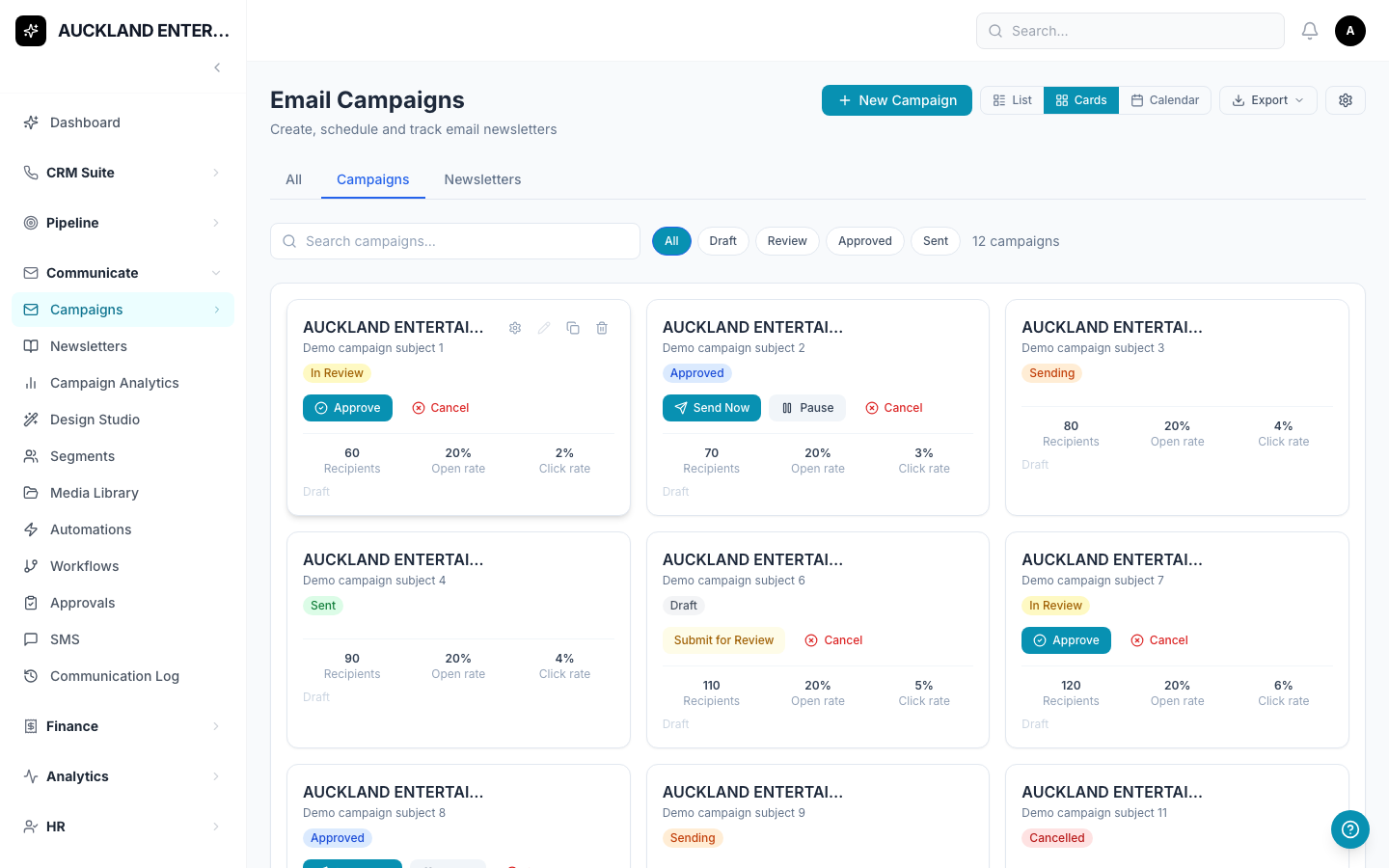
What is a Campaign?
Sending one Template to a group of people at once — for example, a monthly newsletter.
Where do I find it?
Click Communicate, then Campaigns.
How do I send one?
- Click + New Campaign.
- Give it a name and a subject line.
- Choose which Template to send.
- Choose who receives it — either a Subscriber List (a plain, static list of names and emails you build up over time, with people able to unsubscribe) or a saved Segment (see below). You can only pick one of the two.
- Save. This creates it as a Draft.
- Open the draft, check everything looks right, then click Send Now (or schedule it for later).
A campaign moves from Draft to Scheduled (if you picked a future send time) to Sending to Sent — or Failed, if something went wrong.
Note: every email is personalised automatically — each person sees their own name, not a generic greeting.
Tip: the Newsletters menu item isn't a separate feature — it's this same Campaigns screen, just automatically filtered to the campaigns you've tagged as a newsletter rather than a one-off send.
3. Campaign Performance
What is this for?
Seeing how well your sent campaigns actually did — how many people opened them, and how many clicked something inside.
Where do I find it?
Click Communicate, then Campaign Analytics.
What you'll see
A summary at the top — total campaigns sent, total emails sent, your average open rate, and your average click rate — followed by a table with one row per campaign, showing when it was sent, how many people it went to, and its open/click/bounce rates. Click any campaign's name for its own individual breakdown.
Please note: open and click rates only start showing real numbers once your admin has finished setting up email tracking. Until then, campaigns still send successfully — the rates just stay at 0%.
4. Segments
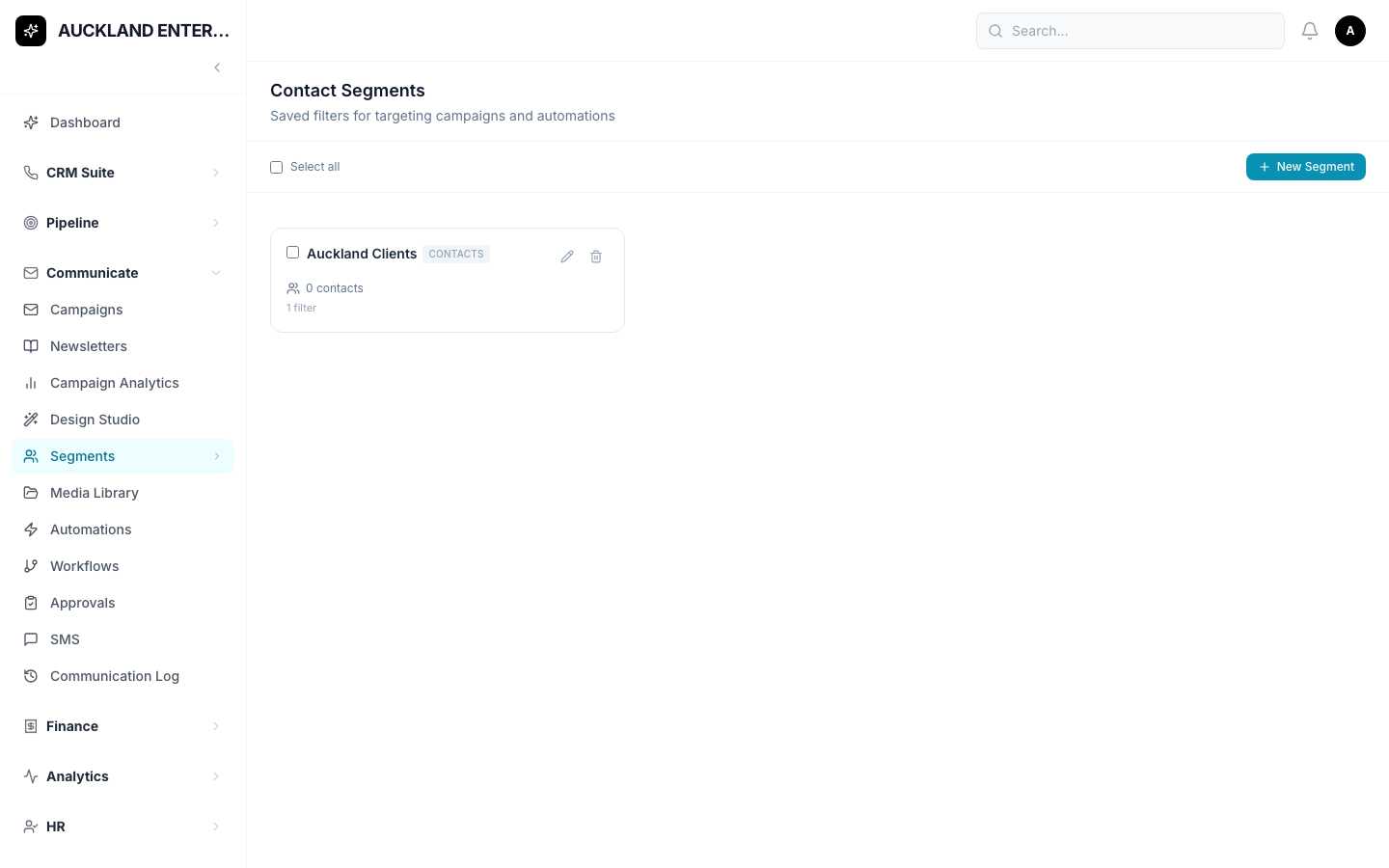
What is a Segment?
A saved, named list of people — for example, "Auckland clients" — that you build once and reuse, instead of picking people by hand every time you send a Campaign.
Where do I find it?
Click Communicate, then Segments.
How do I create one?
The easy way: go to your Contacts, Leads, or Members list, tick the people you want, then click Add to Segment. Type a name, and you're done.
The filter-based way:
- Click + New Segment.
- Give it a name.
- Pick whether it's built from Contacts, Leads, or Members.
- Add one or more rules — for example, "City is Auckland." As you add rules, you'll see the actual matching people update below, so you know exactly who's in it.
- Save.
You can also open any saved Segment afterwards and add or remove specific people by hand, on top of whatever the rules say — handy for a "the rules are close but not quite right" situation.
5. SMS
What is this for?
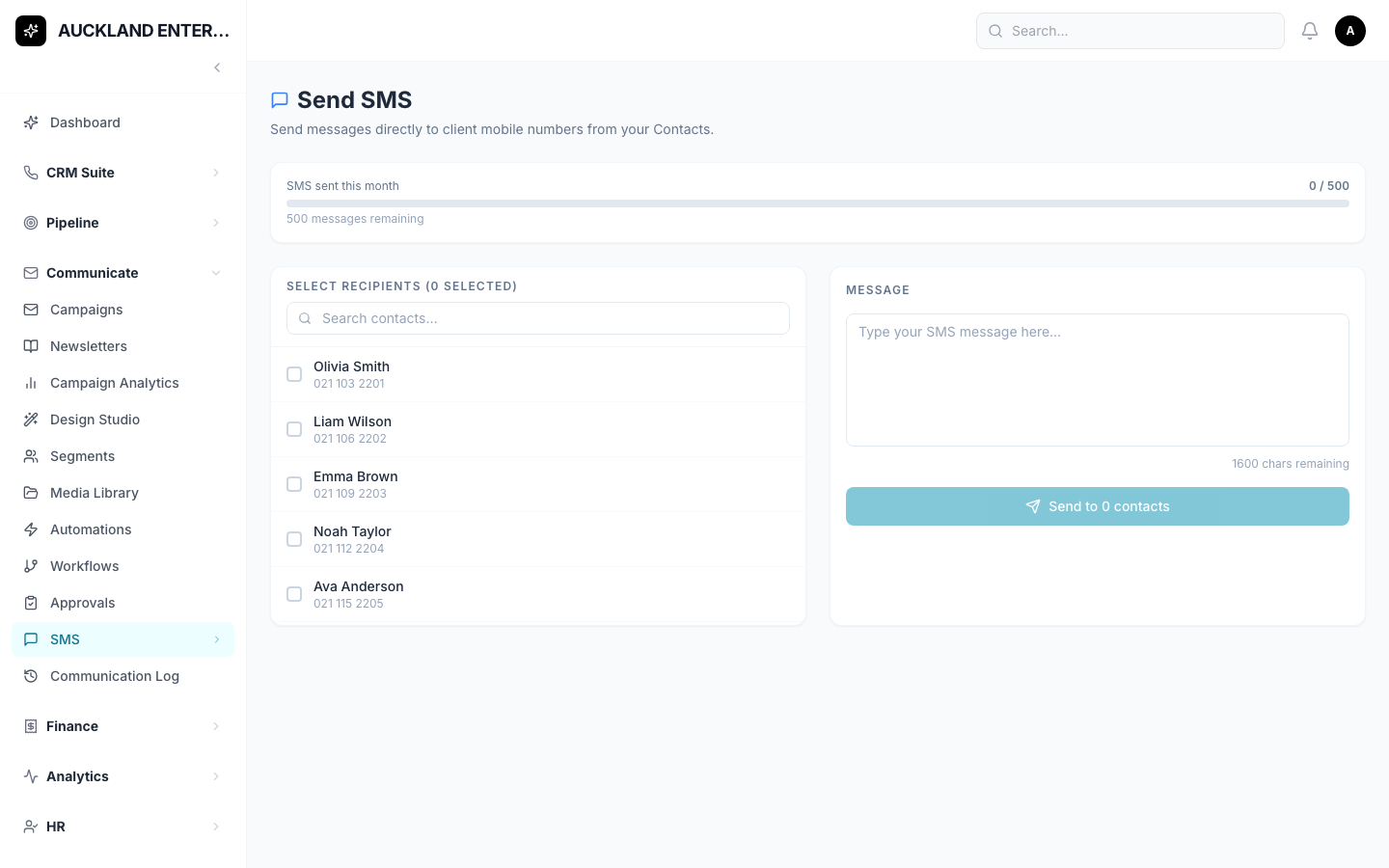
Sending a text message straight to a client's mobile phone.
Where do I find it?
Click Communicate, then SMS.
How do I send one?
- Search for and select one or more contacts (only people with a phone number on file will appear).
- Type your message.
- Click Send.
Please note: unlike email, there's no template or automatic personalisation here — everyone selected gets the exact same message text. Also, only Owners, Admins, and Managers can send SMS, and your organisation has a monthly limit that's shown at the top of the page.
Before you can send your first SMS: an admin needs to set up your organisation's SMS provider details first, in Communication Settings.
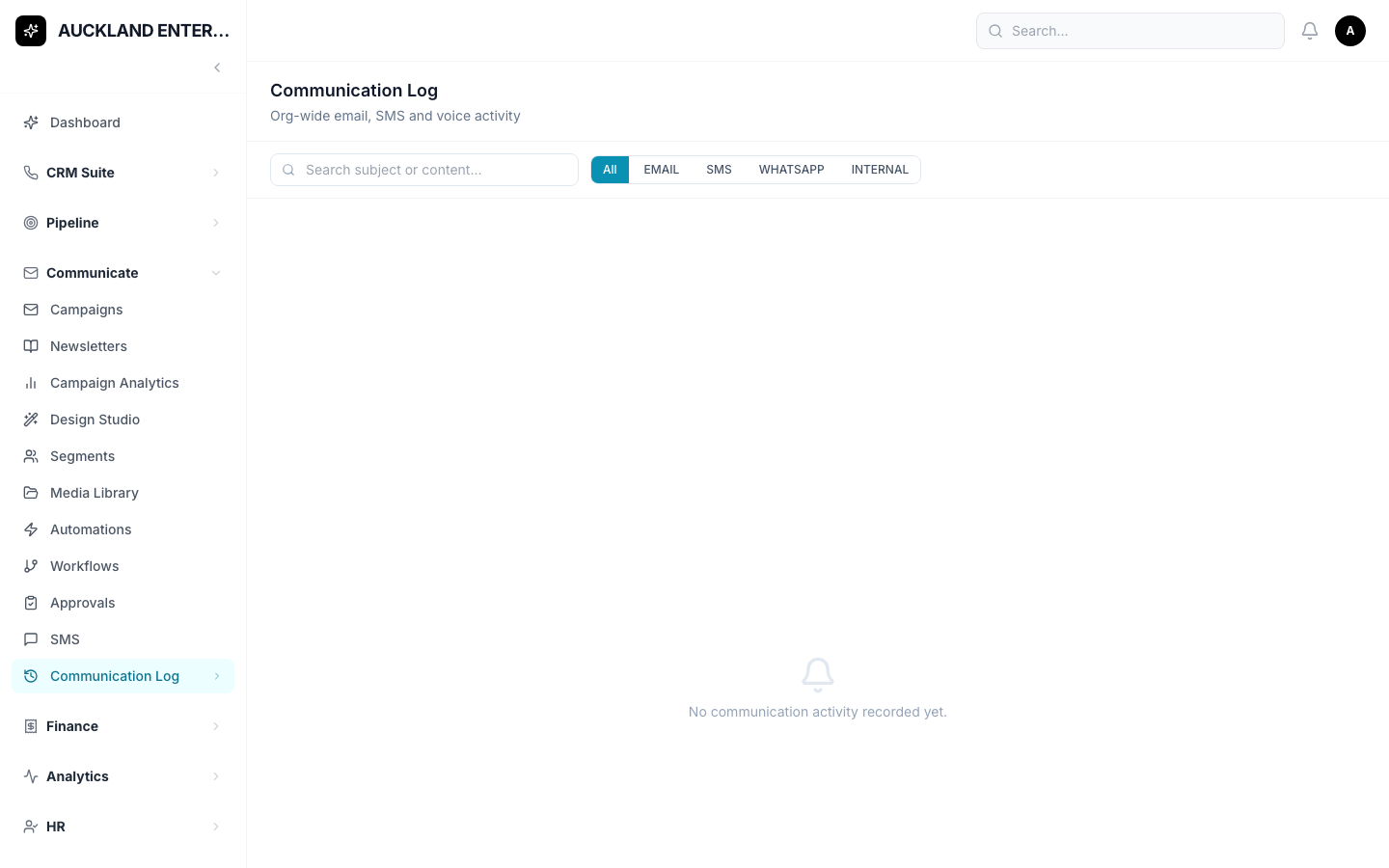
6. Communication Log
What is this for?
One place showing every email and text message ever sent from this system — whether it came from a Campaign, a follow-up reminder, or SMS.
Where do I find it?
Click Communicate, then Communication Log.
You can filter by type (Email/SMS/etc.) and search by subject.
Tip: if you only care about one person's history, you don't need this page — open their Contact record instead and look at Communication History there.
7. Customer Care Reminders
What is this for?
Sending a Template email to people who need a renewal reminder — for example, everyone whose mortgage fixed rate is expiring soon, or whose insurance is due for review. These come from the Mortgage and Insurance Customer Care pages, not from Communicate directly.
How does it work?
- On a Customer Care page, click Send, Send Selected, or Send to All.
- Pick a Template from the list — a preview shows what it'll look like.
- Click Send.
- You'll get a result telling you how many sent, failed, or were skipped.
Why would someone be "Skipped"? They don't have an email address saved on their Contact record — add one and try again.
8. Automations & Workflows
These two are more advanced, and are usually set up once by an admin rather than used day-to-day.
- Automations send something automatically, with no one needing to click a button — for example, "email this template 30 days before a fixed rate expires." Other common triggers: a lease expiring, an invoice going overdue, a contact's birthday, a lead moving to a new stage, or a loan application changing status. Rules can also just create a task instead of (or as well as) sending an email.
- Workflows are approval chains — for example, "invoices over $5,000 need a Manager, then an Owner, to sign off before they can be sent." Workflows can be attached to Invoices, Expenses, Loan Applications, Insurance Applications, Tasks, Contacts, or Leads.
If your organisation uses these, ask your admin to show you where to check on things waiting for your approval — that's under Communicate → Workflows → Approvals.
Common Questions
Why does a campaign show 0% for opens and clicks? This usually means email tracking hasn't been fully set up yet by your admin. The emails are still sending — you just won't see open/click numbers until that's done.
I sent an SMS and it says some contacts were "Skipped." That means those contacts don't have a phone number saved. Add one to their Contact record and try again.
Can I personalise an SMS the way I can an email? No — SMS sends the exact same text to everyone you select.
What's the difference between a Subscriber List and a Segment? A Subscriber List is a plain, static list you build up over time (with people able to unsubscribe). A Segment can be the same kind of hand-picked list, or it can be built from rules that automatically stay up to date (e.g. "everyone in Auckland") — or a mix of both.
I can't find something I'm looking for — what do I do? Try the search box on whichever screen you're on.
I clicked a button and it says "Module Not Enabled." That feature hasn't been switched on for your organisation yet. It's not a mistake on your part — ask your manager or admin if you think you should have access to it.