Finance — Simple Guide
This guide explains the Finance part of the system in plain, everyday language. No technical words. If you can use email, you can use this.
Finance is where you bill clients, track what your team spends, and see reports on how the organisation is doing financially. It has these parts:
- Invoices — billing your clients
- Expenses — what your team spends and gets reimbursed for
- Financial Reports — a look at how things are going
- The Advanced Stuff — accounting, budgets, and bank matching
1. Invoices
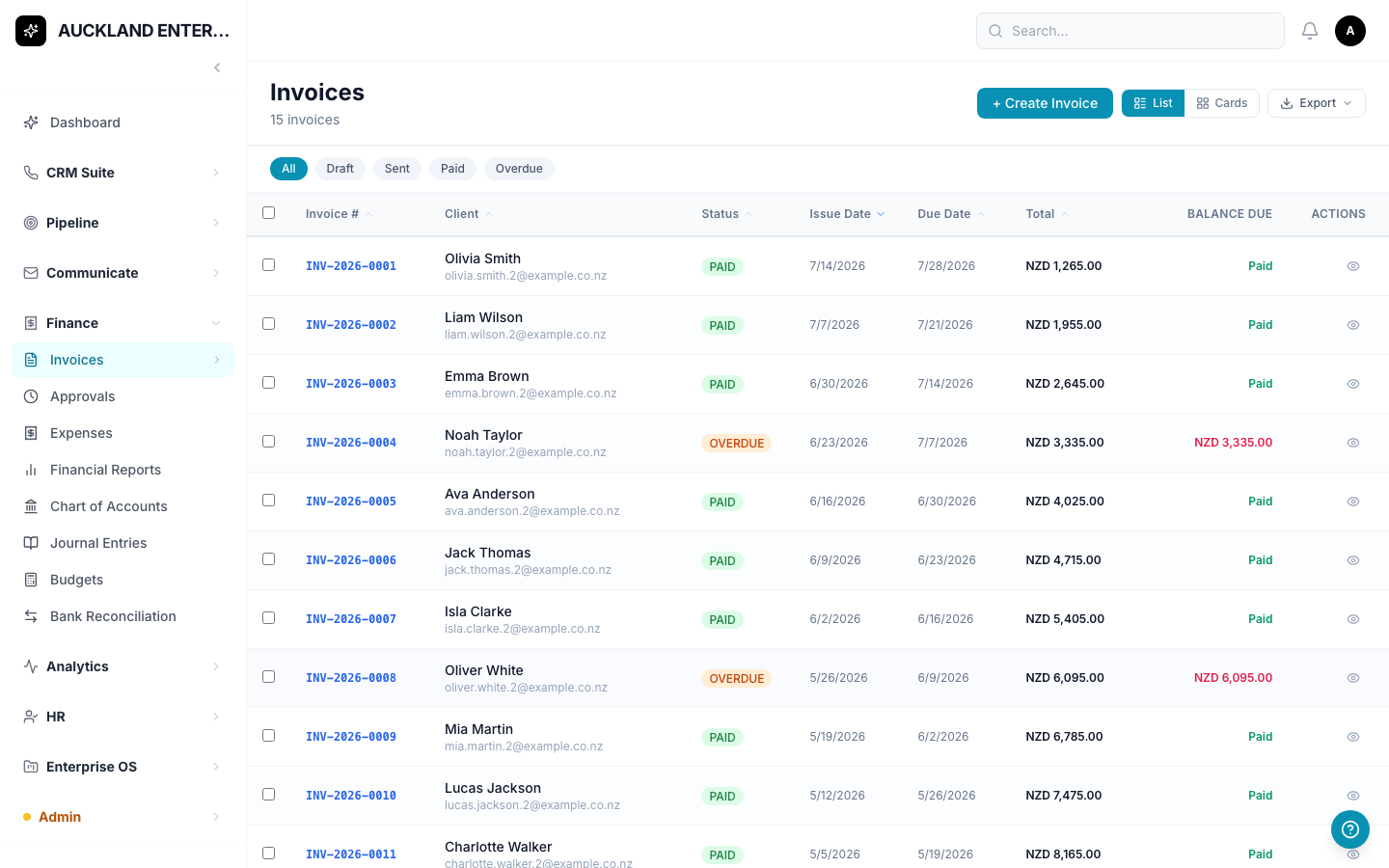
What is an Invoice?
A bill you send to a client.
Where do I find it?
Click Finance, then Invoices.
How do I create one?
- Click + New Invoice.
- Fill in the client's name — this is required.
- Add at least one line item — a description and a price.
- Fill in any other details you need (dates, notes, etc.).
- Save. Your invoice starts as a Draft.
An invoice moves through stages as you work with it — Draft, then (if your organisation requires sign-off) Pending Approval, then Approved, Sent, Viewed, and finally Paid. If a client hasn't paid by the due date, the system marks it as Overdue for you automatically.
Approving Invoices
If your organisation requires sign-off before an invoice goes out, click Finance, then Approvals, to see what's waiting for you.
2. Expenses
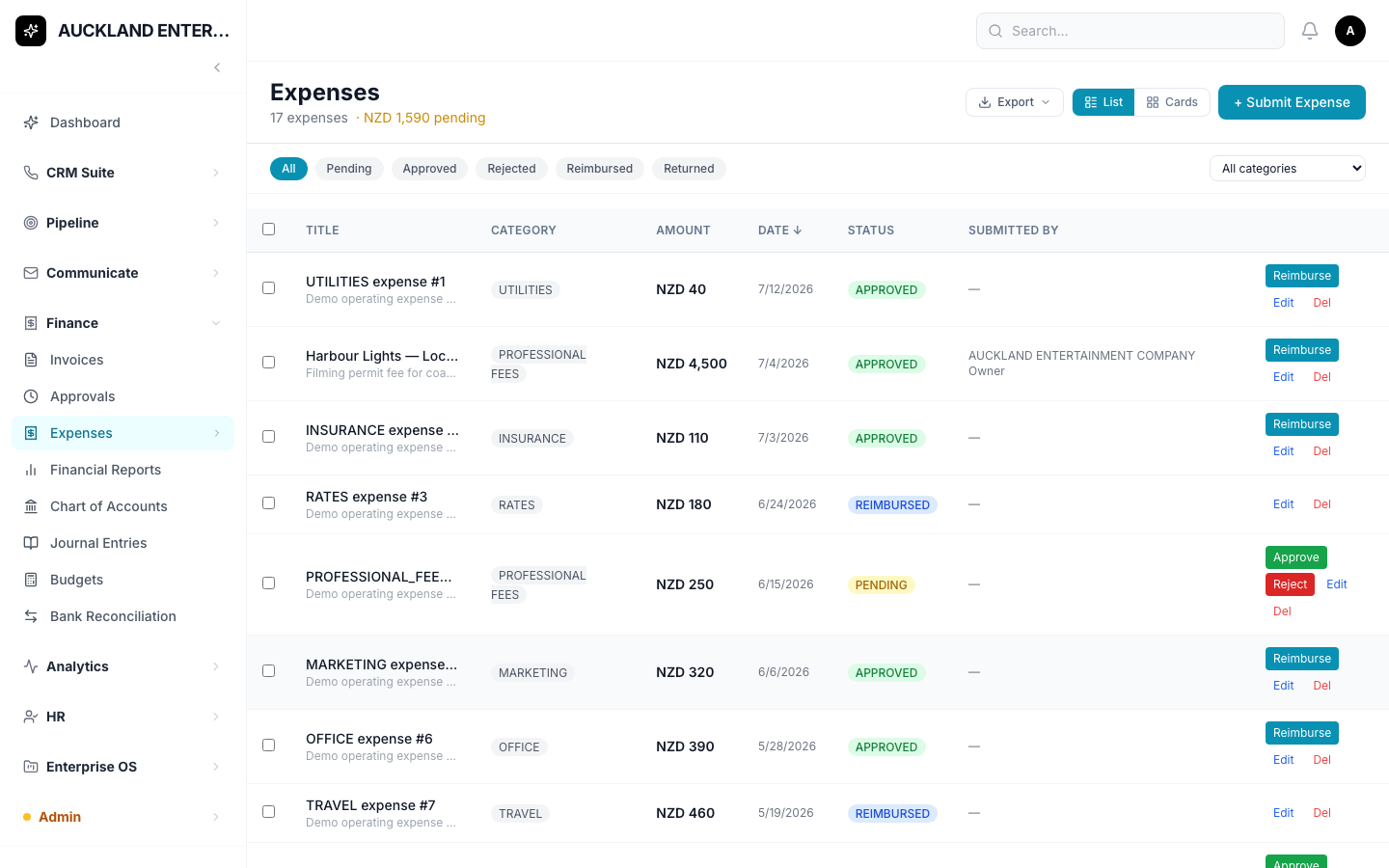
What is an Expense?
Money your team has spent that needs approving and (usually) paying back.
Where do I find it?
Click Finance, then Expenses.
How do I submit one?
- Click Submit Expense.
- Give it a title and an amount — these are the only things required.
- If you like, add a description, a date, and a category (like Travel or Office).
- Save.
A manager can then Approve, Reject, or mark it as Reimbursed once it's been paid back.
Please note: there's currently no way to attach a photo of your receipt directly on this form. Keep receipts somewhere safe until this is added.
3. Financial Reports
What is this for?
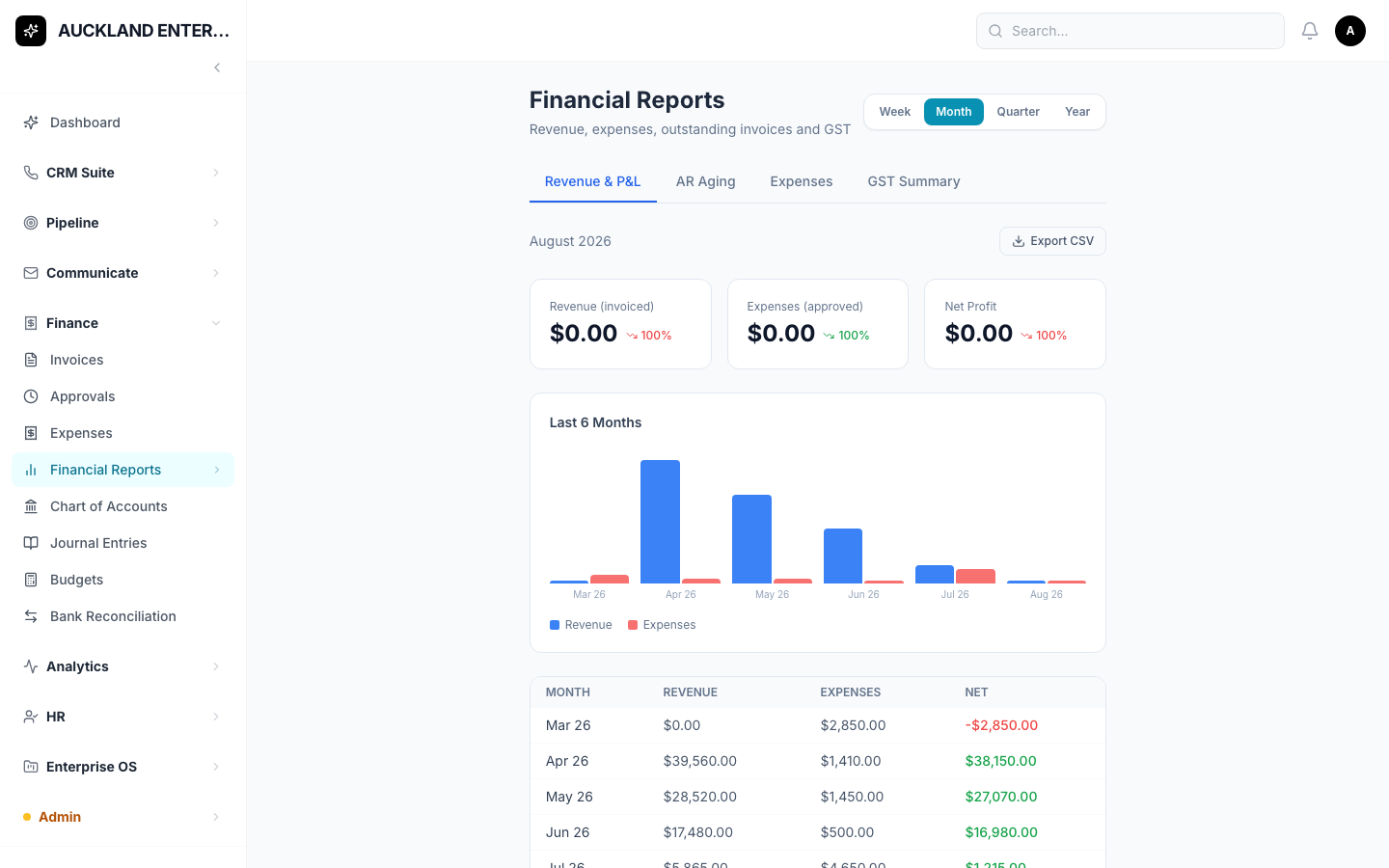
A quick look at how the organisation is doing — profit and loss, who owes you money and for how long, and a breakdown of expenses.
Where do I find it?
Click Finance, then Financial Reports.
You'll see a few tabs to switch between different views. There's also a simpler Reports page (under Analytics) with a one-click CSV download — see the Analytics guide if you just want a quick export.
4. The Advanced Stuff
These screens are usually only used by whoever manages your organisation's bookkeeping — most people won't need them day-to-day:
- Chart of Accounts — the list of accounts your bookkeeping uses.
- Journal Entries — the detailed accounting ledger.
- Budgets — planned spending by account, by month, compared to what actually happened.
- Bank Reconciliation — matching your bank statement against what's recorded in the system.
If you're not sure whether you need these, you probably don't — ask whoever manages your organisation's books.
Common Questions
Why does an invoice show as "Overdue"? The system works this out automatically once an invoice is unpaid and past its due date — nobody needs to set that by hand.
Where do I attach a receipt to an expense? Currently, you can't attach one directly on the Expense form — keep it somewhere safe for now.
I can't find something I'm looking for — what do I do? Try the search box on whichever screen you're on. You can also click on any column title to sort.
I clicked a button and it says "Module Not Enabled." That feature hasn't been switched on for your organisation yet. It's not a mistake on your part — ask your manager or admin if you think you should have access to it.