Insurance — Simple Guide
This guide explains the Insurance part of the system in plain, everyday language. No technical words. If you can use email, you can use this.
Insurance is where you look after a client's insurance journey — from a first quote, through to a real policy, and any claims they make along the way. It has these parts:
- Quotes — a price you've worked out for a client
- Applications — a quote that's being processed
- Policies — insurance that's actually in place
- Claims — when a client needs to use their insurance
- Renewals — policies coming up for review
- Commissions — what you're owed for policies you've sold
- Quick Quote & Profiler — the two calculators
- Follow-Ups — reminders to check in with clients
Important: these steps do not all connect automatically. Read each section below carefully — a few of the "next steps" you'd expect need to be done outside this system for now, and this guide tells you exactly which ones.
1. Quotes
What is a Quote?
A price you've worked out for a client's insurance, before anything is official.
Where do I find it?
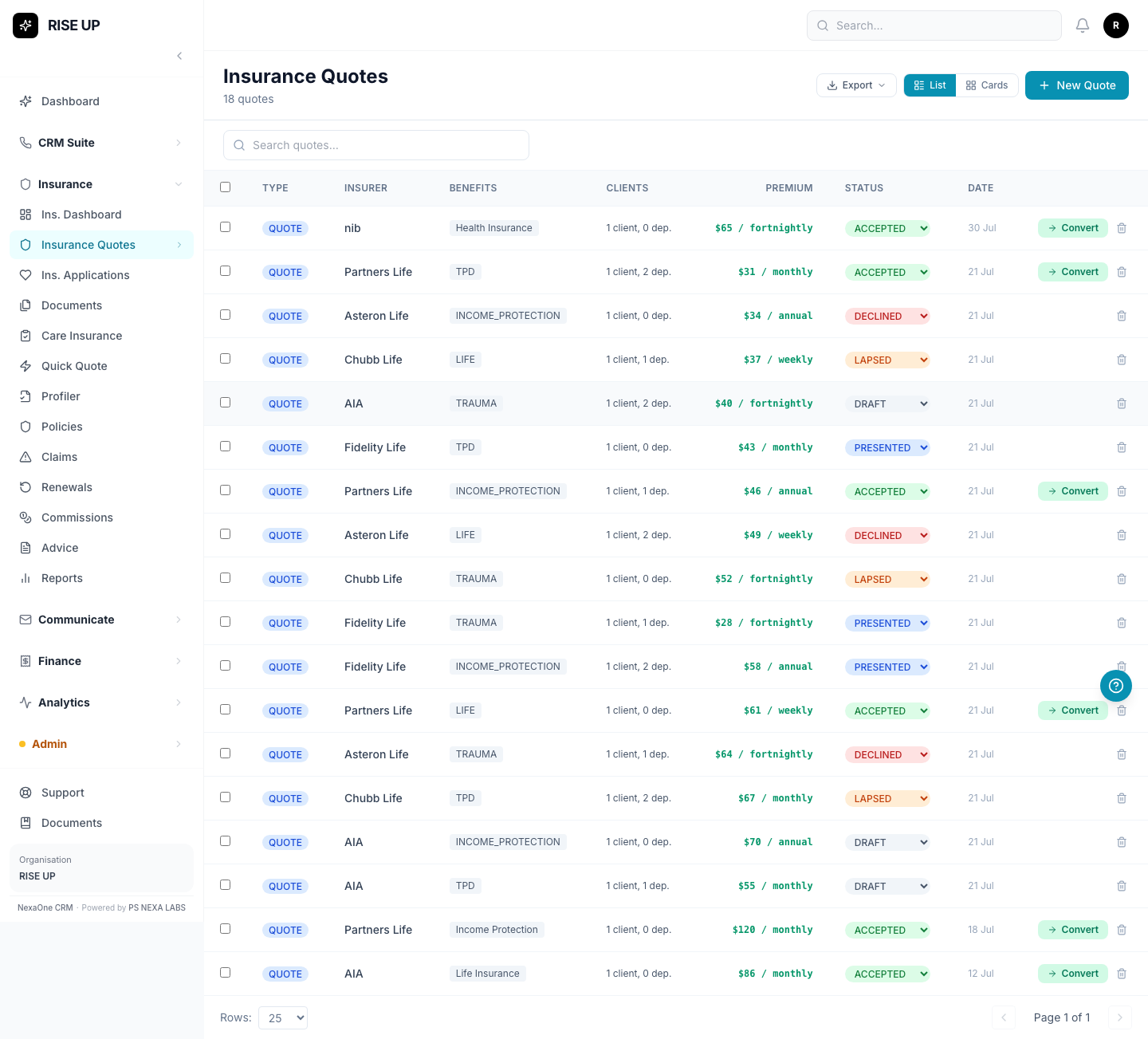
Click Insurance, then Insurance Quotes, on the left-hand menu.
How do I create one?
- Click + New Quote.
- Fill in the client's details and the type of cover.
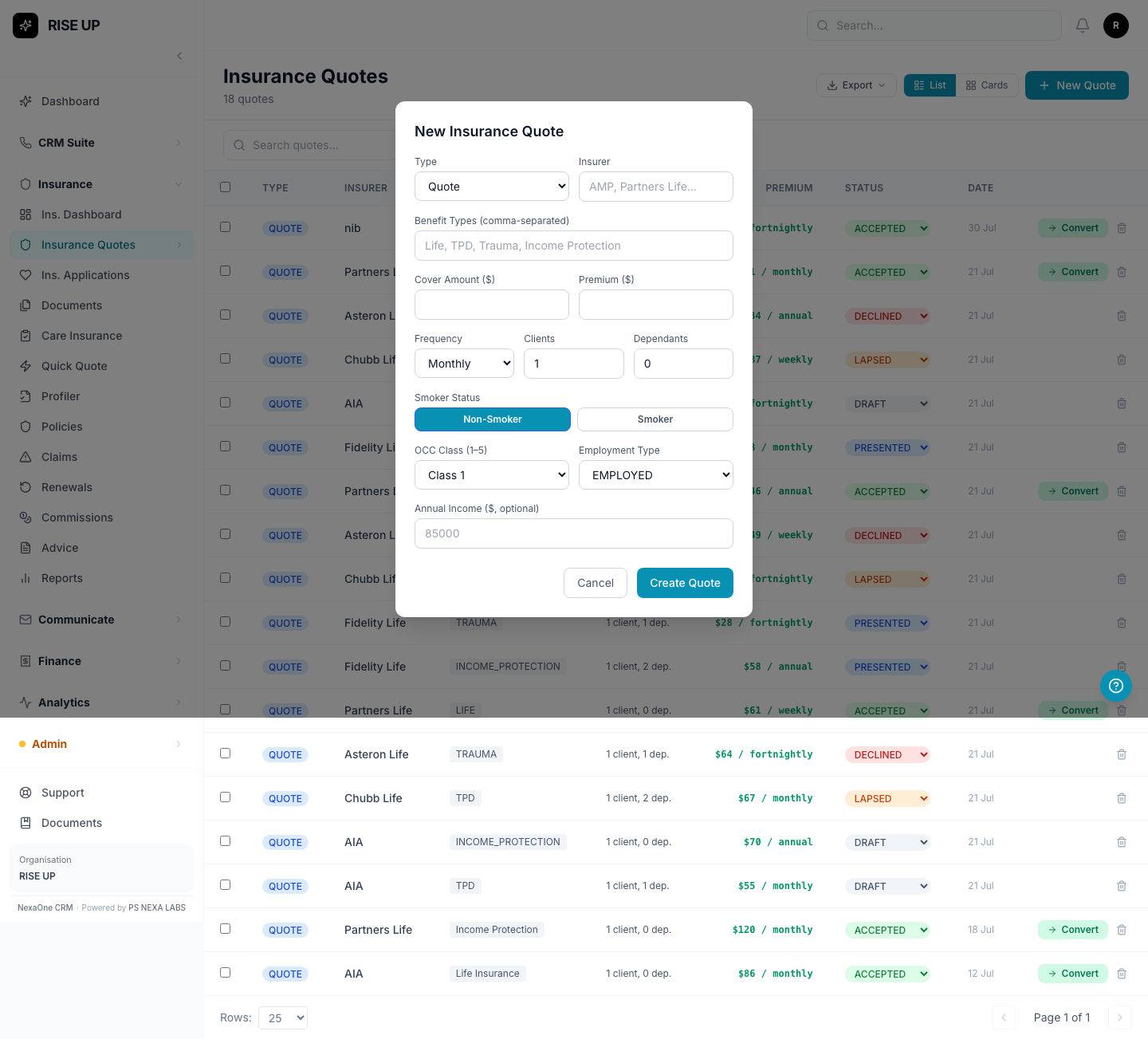
- Save it.
Turning a Quote into an Application
Once a quote's status is set to Accepted, a Convert button appears on it. Click this to turn it into an Application (see below).
Please note: After you click Convert, the system takes you back to the main list — it won't jump straight to the new Application for you. Look for it near the top of the Applications list (most recent first).
2. Applications
What is an Application?
A quote that's now being processed by the insurance company, working towards a decision.
Where do I find it?
Click Insurance, then Ins. Applications.
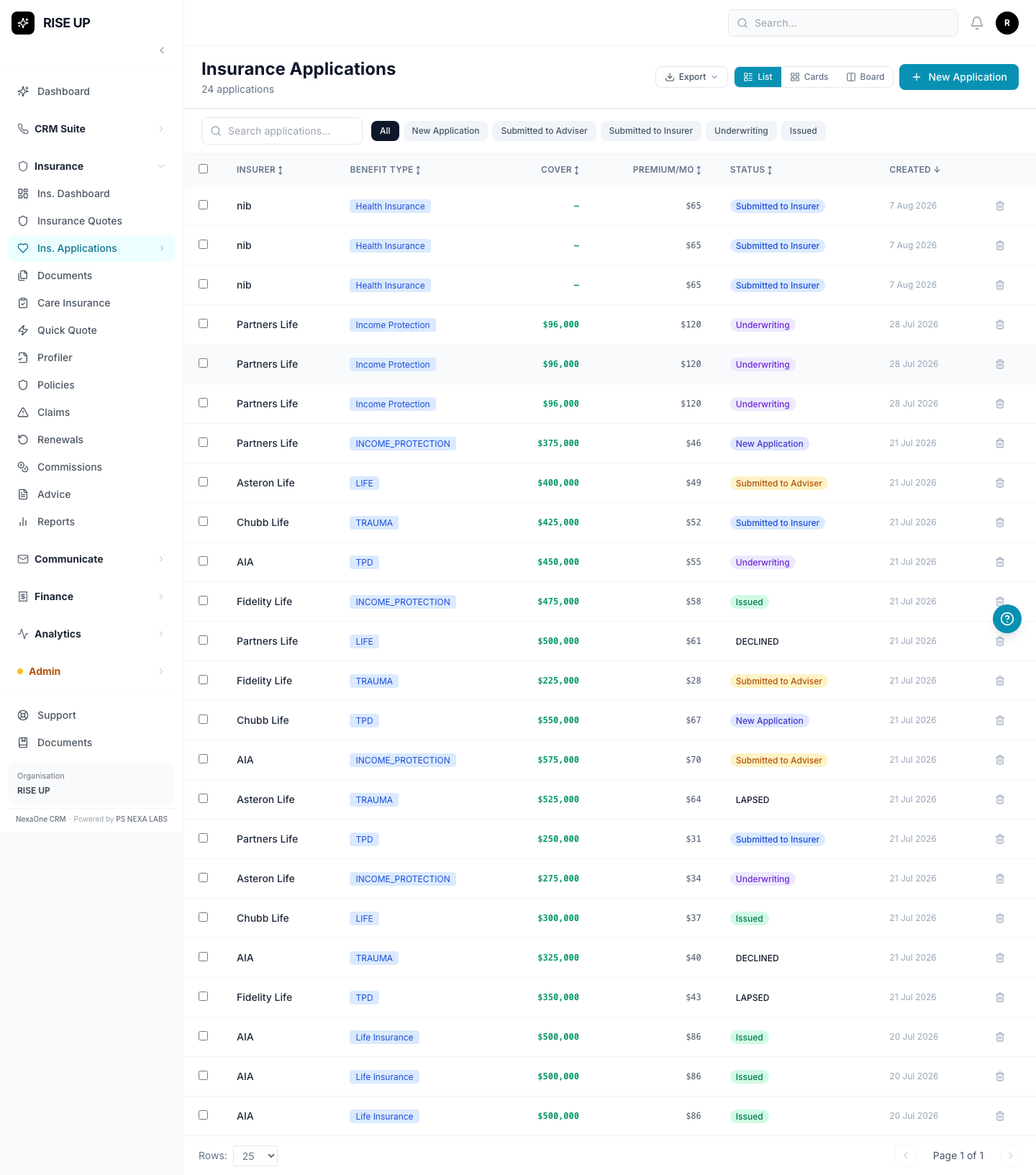
You can view this list three ways, including as a board, where each application sits in a column showing what stage it's at.
How do I create one?
- Click + New Application.
- Fill in the client and cover details.
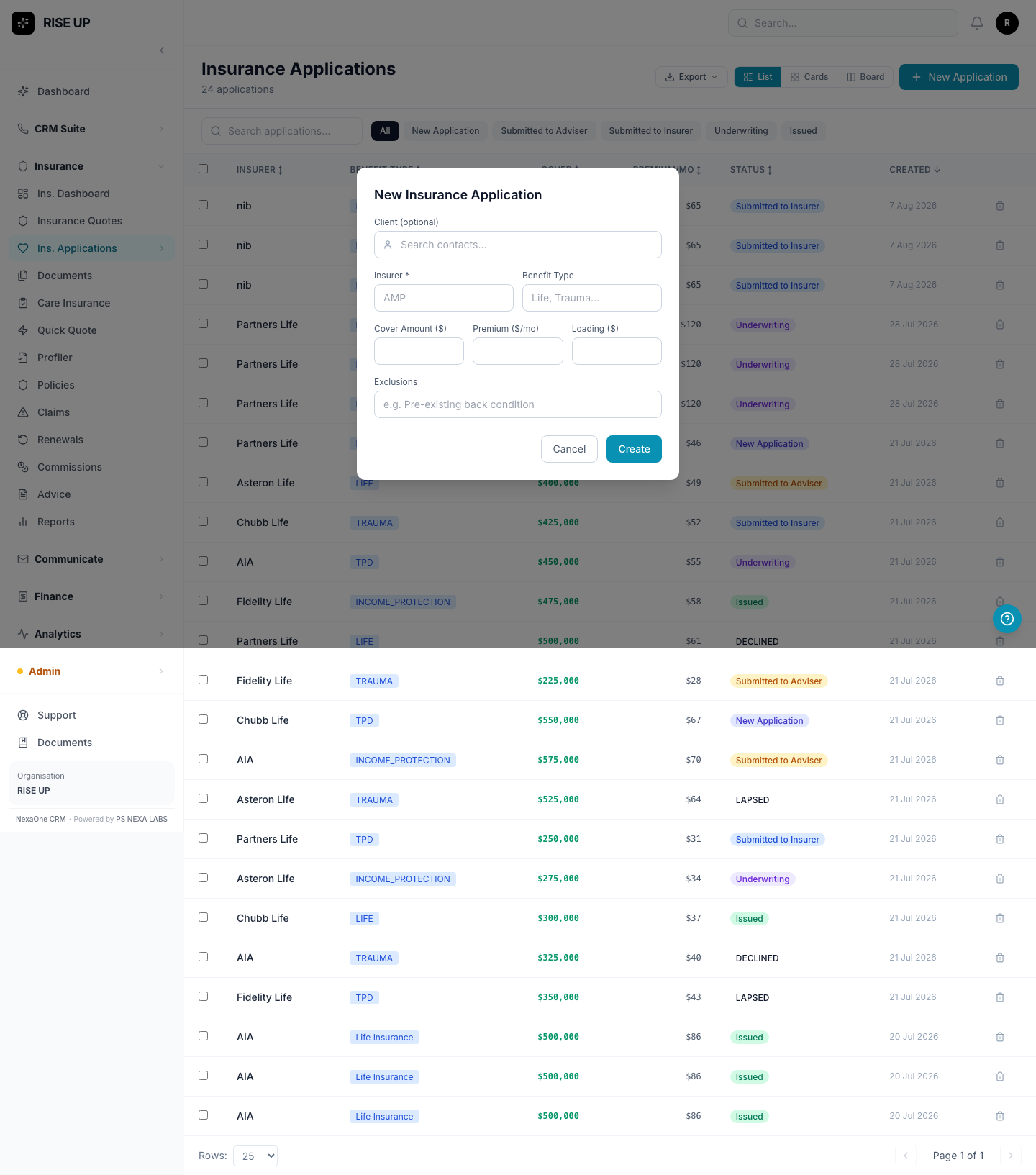
- Save it.
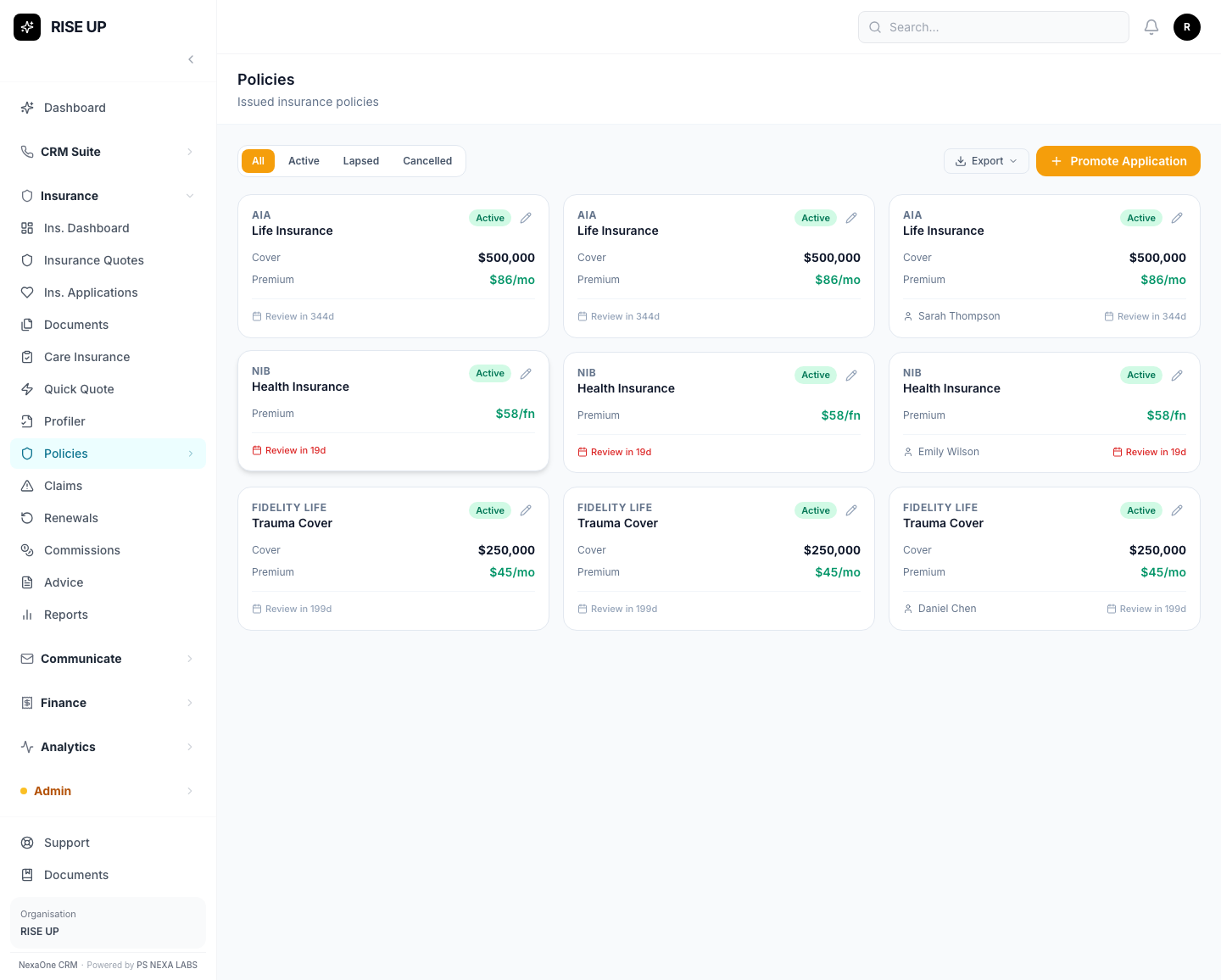
3. Policies
What is a Policy?
Insurance that has actually been put in place for a client — the real, active cover.
Where do I find it?
Click Insurance, then Policies.
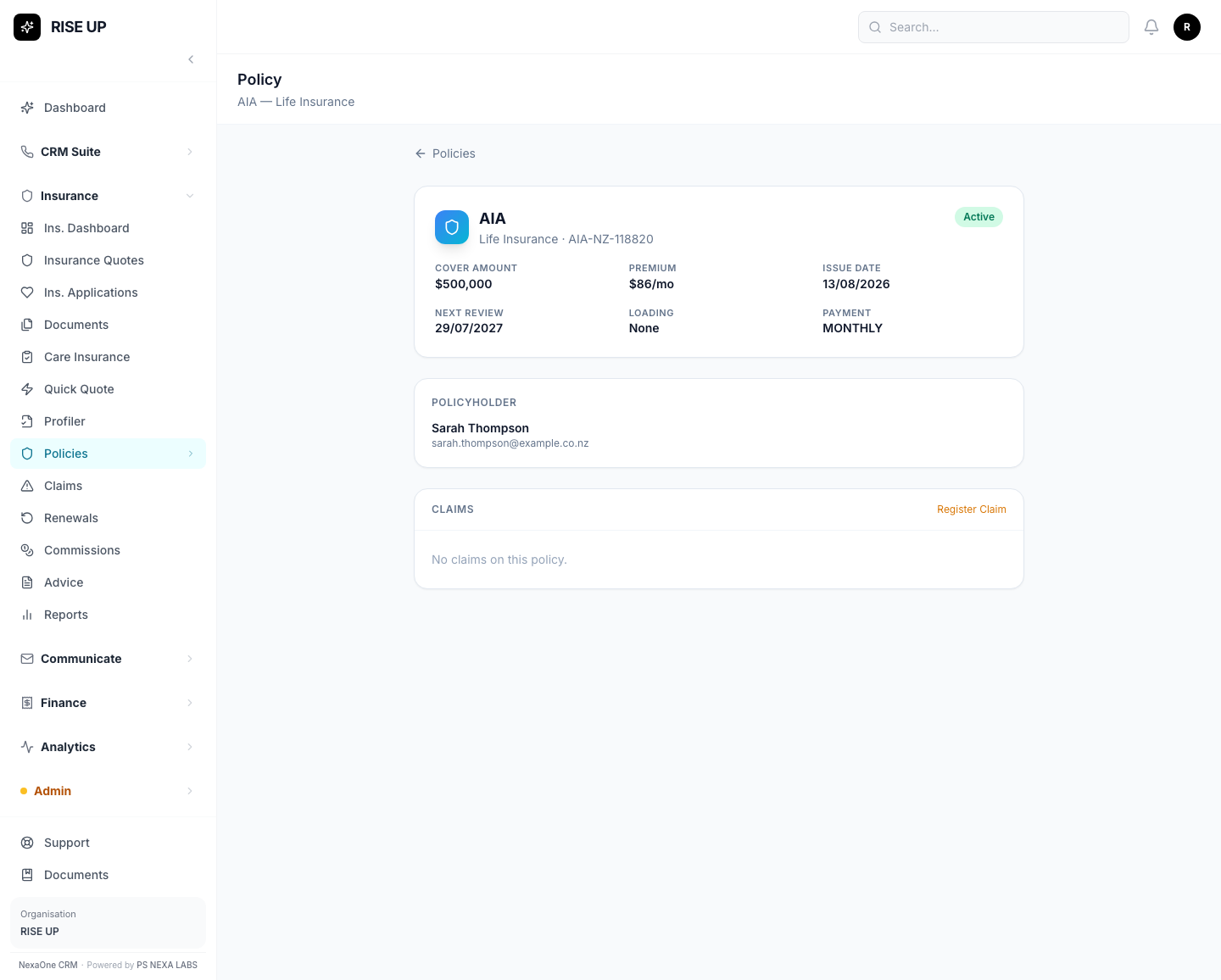
Click on any policy to see its full details, including any claims made against it.
⚠ Important — there is currently no button to create a policy
Right now, there's no way in this screen to turn an Application into a Policy yourself. This is a genuine gap in the system today, not something you're missing — if you need to issue a new policy, ask your admin or developer for help doing it directly, outside of this screen, until this is fixed.
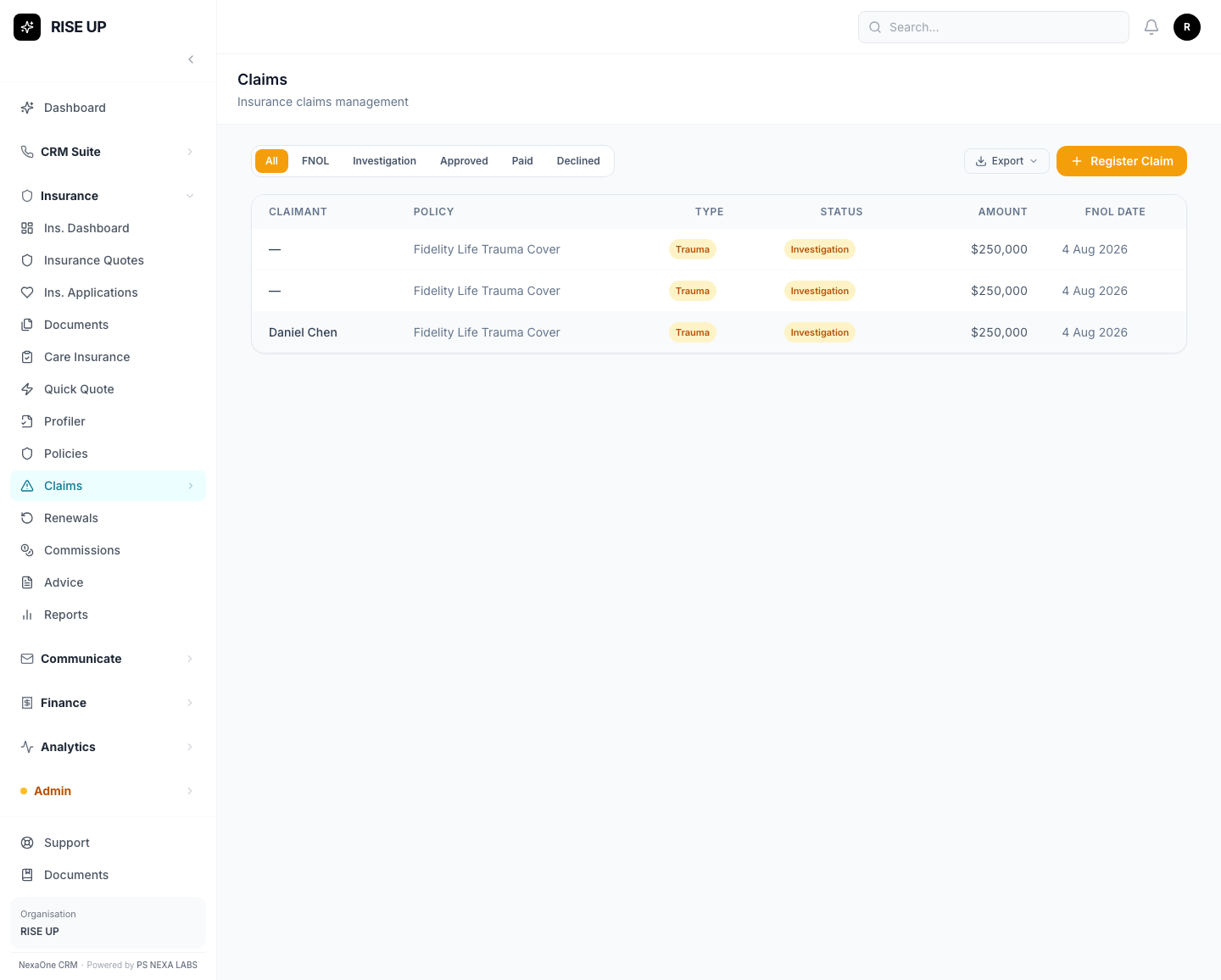
4. Claims
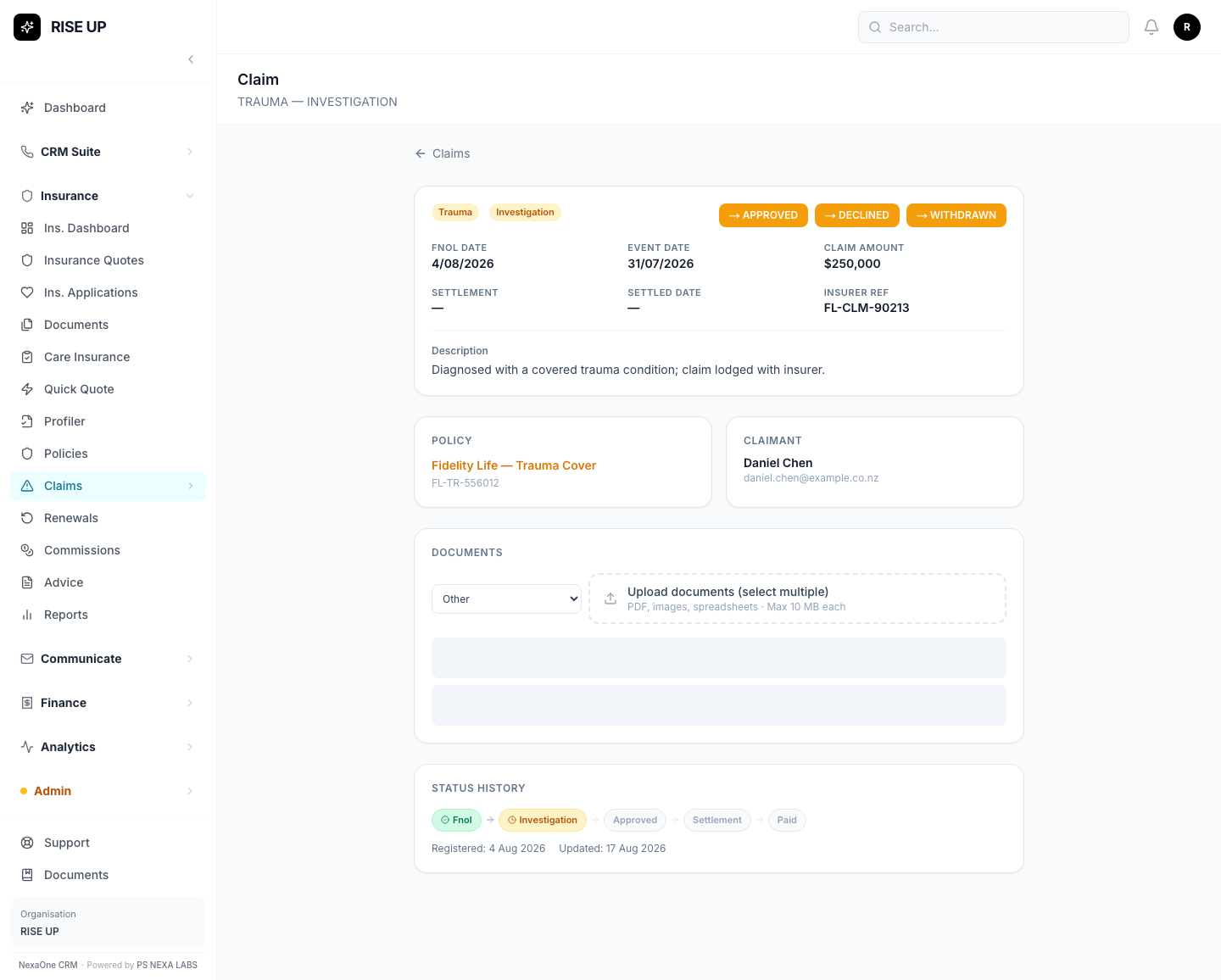
What is a Claim?
When a client needs to actually use their insurance — for example, after an accident or illness.
Where do I find it?
Click Insurance, then Claims.
How do I report a new claim?
The easiest way is from the policy itself:
- Open the client's Policy (see above).
- Click Register Claim. This fills in the policy details for you automatically.
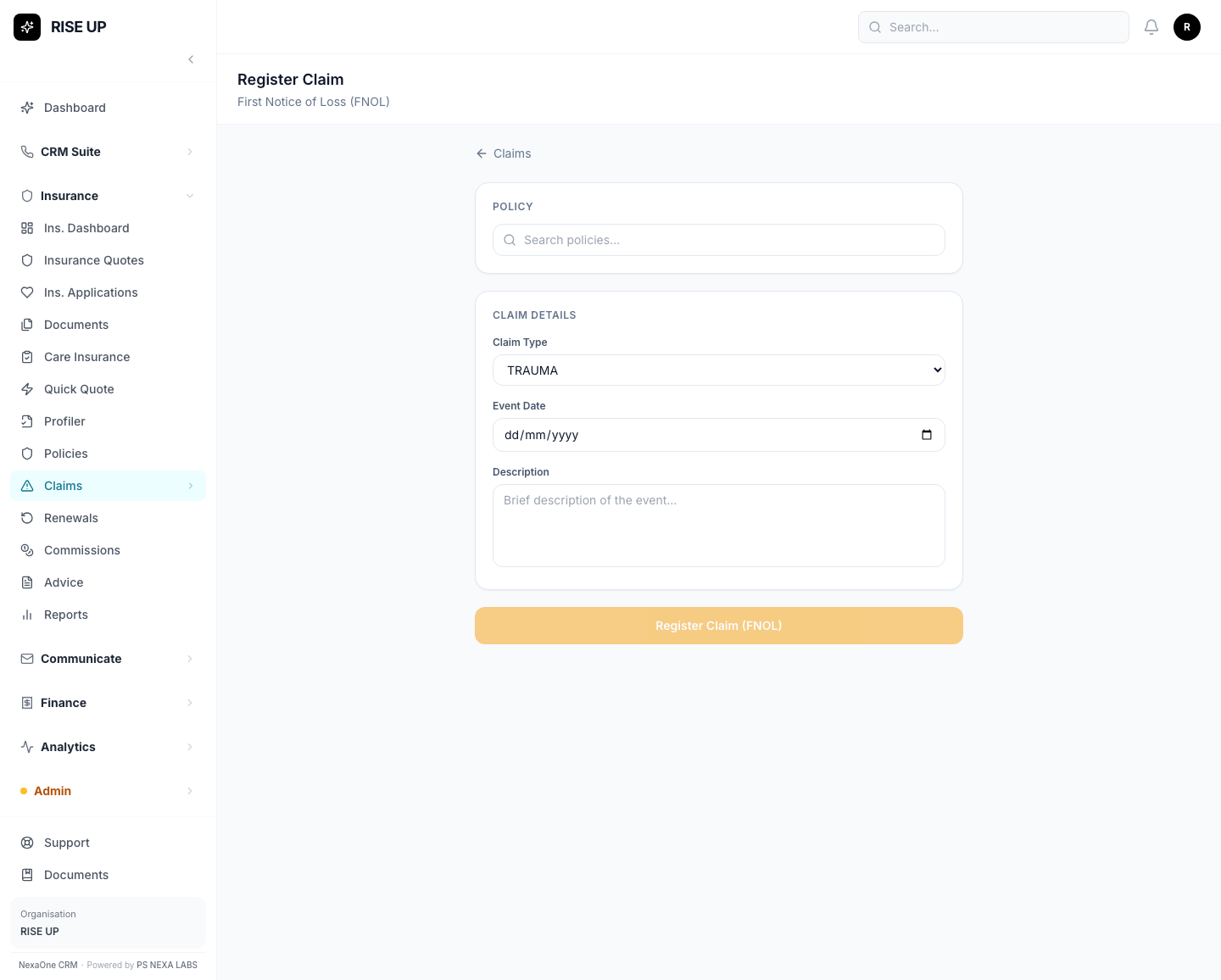
- Fill in what happened, and save.
Following a claim through
Click on any claim to see its full details, change its status (for example, moving it from "Being Looked At" through to "Paid"), and attach documents.
Note: You can't register a new claim against a policy that has ended or been cancelled — the system will stop you.
5. Renewals
What is this for?
A simple list showing which policies are coming up for their yearly review.
Where do I find it?
Click Insurance, then Renewals.
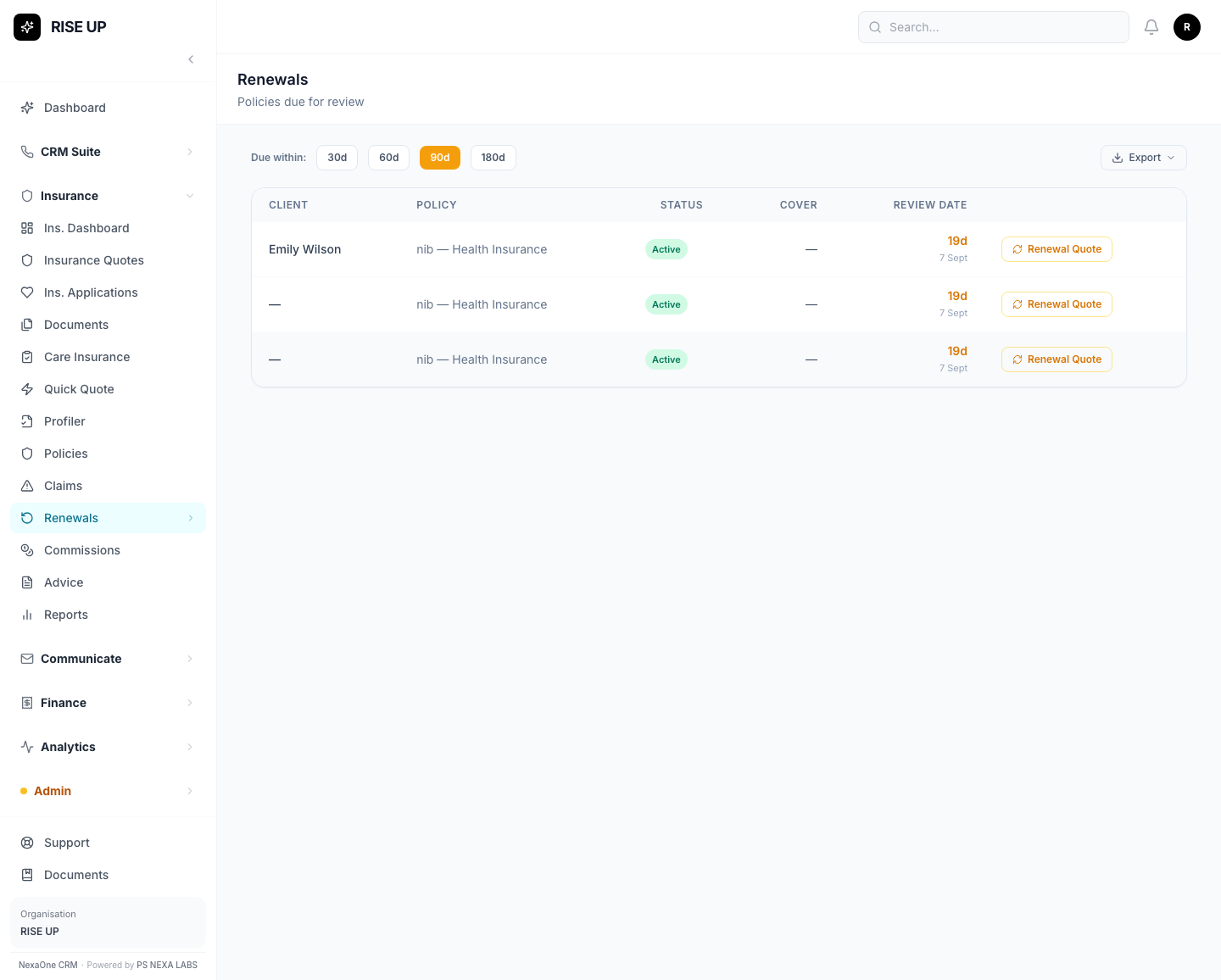
This list updates itself automatically, straight from each policy's own review date — you don't need to add anything to it by hand.
Please note: There's also an "Annual Reviews" tab under Follow-Ups (see section 8). That is a separate, disconnected list — completing something there does not update this Renewals page, and vice versa. Treat them as two different to-do lists, not one.
6. Commissions
What is this for?
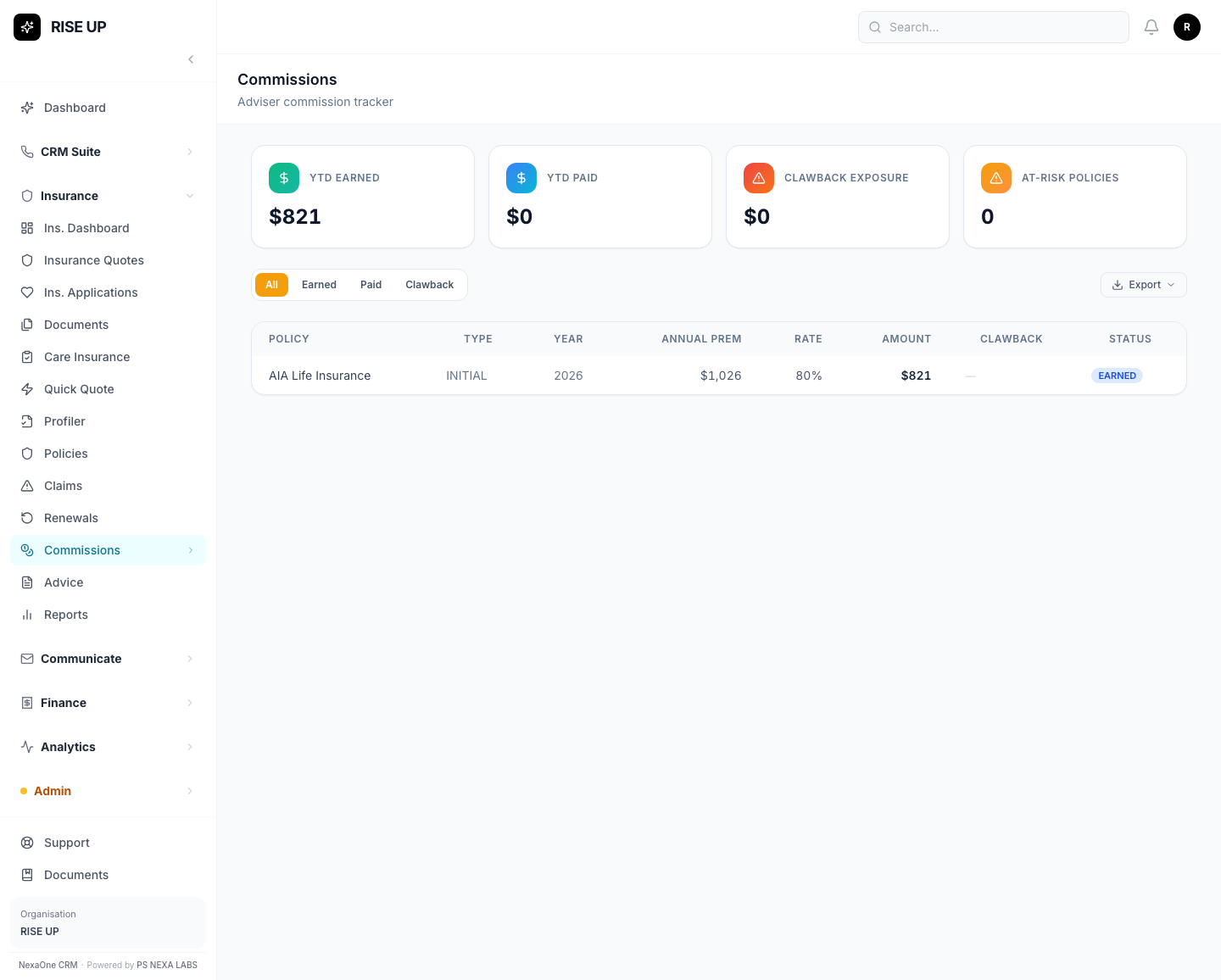
A read-only report showing what you're owed for the policies you've sold — this year so far, what's been paid, and any clawbacks.
Where do I find it?
Click Insurance, then Commissions.
7. Quick Quote & Profiler
What are these?
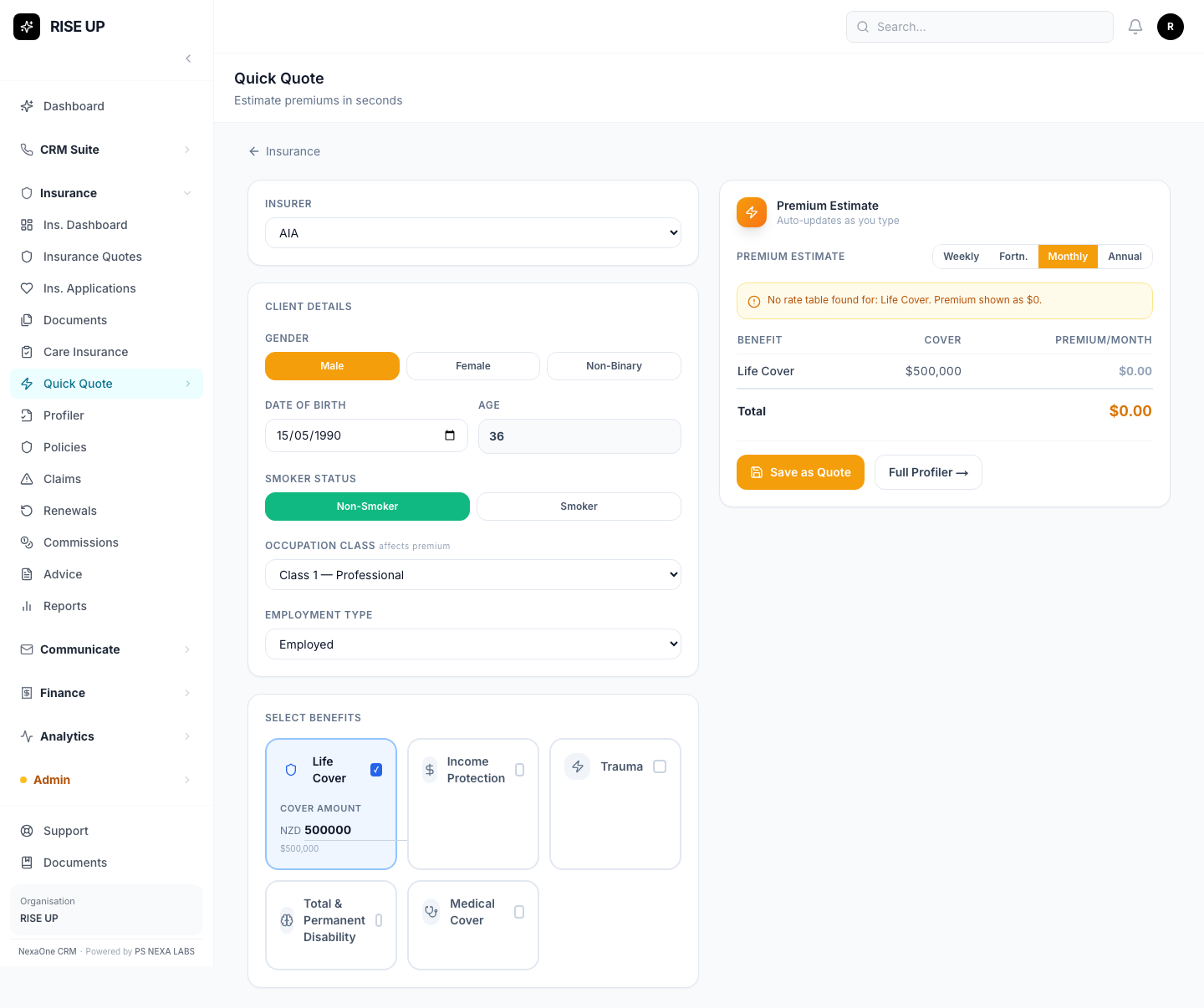
Two calculators for working out a client's insurance premium before you create a formal quote.
- Quick Quote — fast, for one person.
- Profiler — a fuller look at a whole family's needs, including checking if there are any gaps in their current cover.
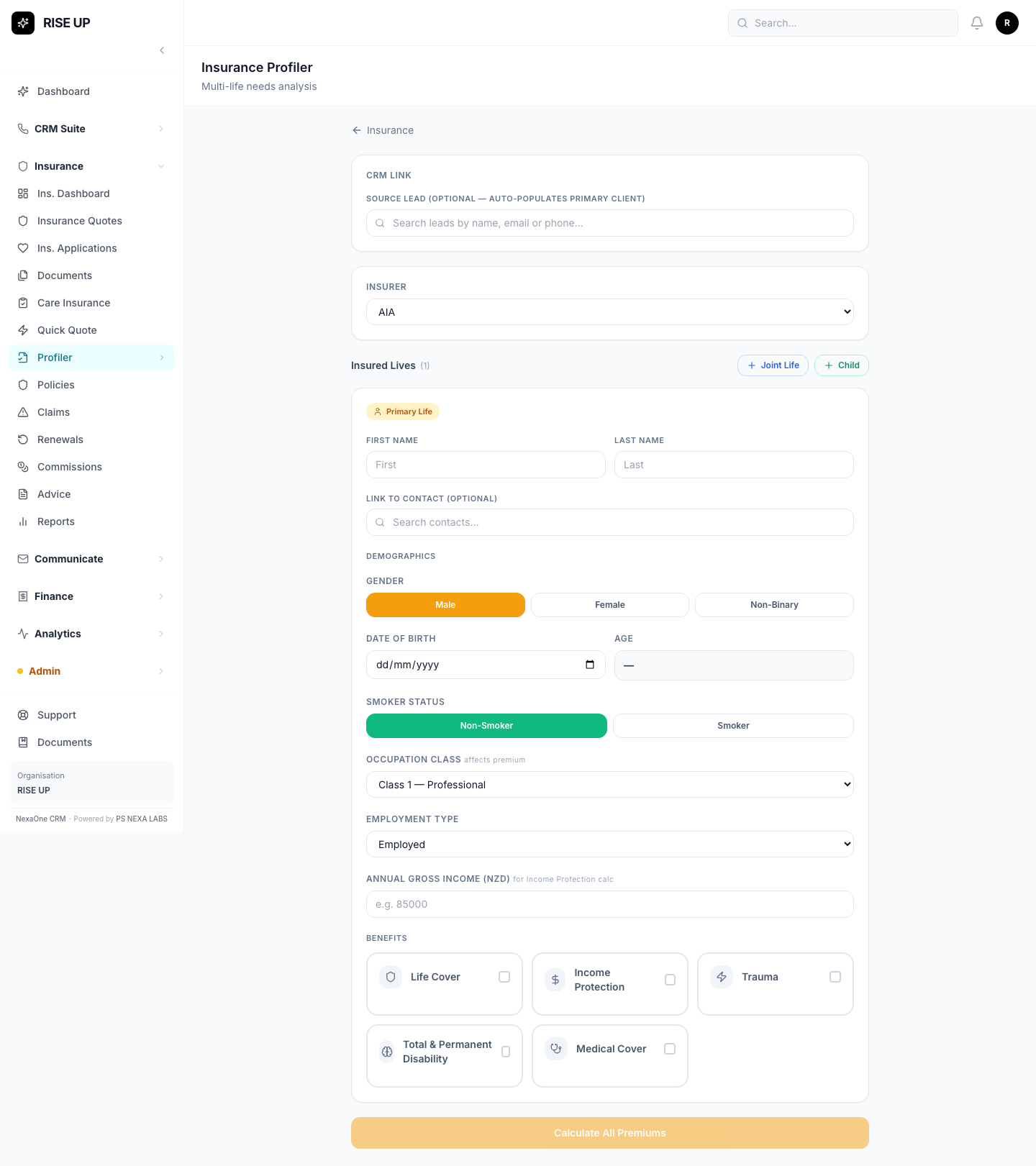
Both of these save a real record when you use them — they're not just a throwaway calculation.
If every price comes back as $0: this means your organisation's price tables haven't been set up yet for that insurer/type of cover. Ask your admin to check Insurance Admin → Rate Tables.
8. Follow-Ups
What is this for?
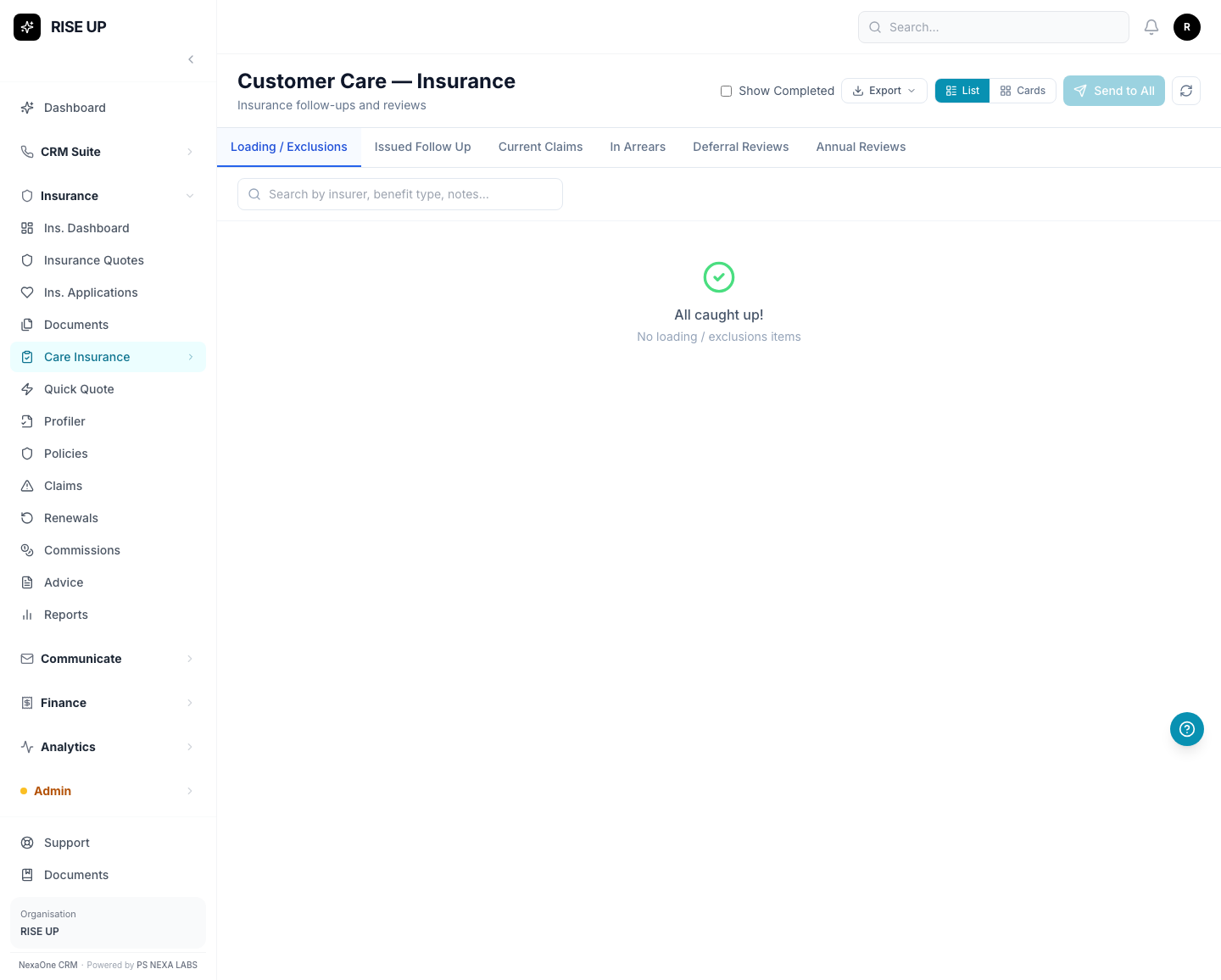
A worklist of clients you should check in with — split into six tabs: loading/exclusions, issued policies to follow up, current claims, clients in arrears, deferral reviews, and annual reviews.
How do I use it?
Tick the clients you want to contact, then click Send to send them a template email. Once you've dealt with someone, click Mark Complete on their row.
Common Questions
Why does Quick Quote or Profiler show $0 for everything? Your organisation's price tables haven't been set up for that insurer yet. Ask your admin to check the Rate Tables in Insurance Admin.
I converted a quote but can't find the new application. Convert doesn't jump you straight to it — look near the top of the Applications list, sorted by most recently created.
How do I turn an application into a policy? You currently can't, from this screen — see the note in the Policies section above. This is a known gap, not something you're doing wrong.
I marked something done in Follow-Ups, but Renewals still shows it as due. That's expected — Renewals and the Follow-Ups "Annual Reviews" tab are two separate lists that don't talk to each other yet. See the note in Renewals.
I can't find something I'm looking for — what do I do? Most lists have a search box at the top. You can also click on any column title to sort.
I clicked a button and it says "Module Not Enabled." That feature hasn't been switched on for your organisation yet. It's not a mistake on your part — ask your manager or admin if you think you should have access to it.