Pipeline — Simple Guide
This guide explains the Pipeline part of the system in plain, everyday language. No technical words. If you can use email, you can use this.
Pipeline is where you track every deal in progress — from a first enquiry, through to a signed loan or insurance policy. It has these parts:
- Leads — people who might become a client
- Opportunities — deals you're working on
- Loan & Insurance Applications — quick links to those boards
1. Leads
What is a Lead?
Someone who's shown interest, before they've become a paying client.
Where do I find it?
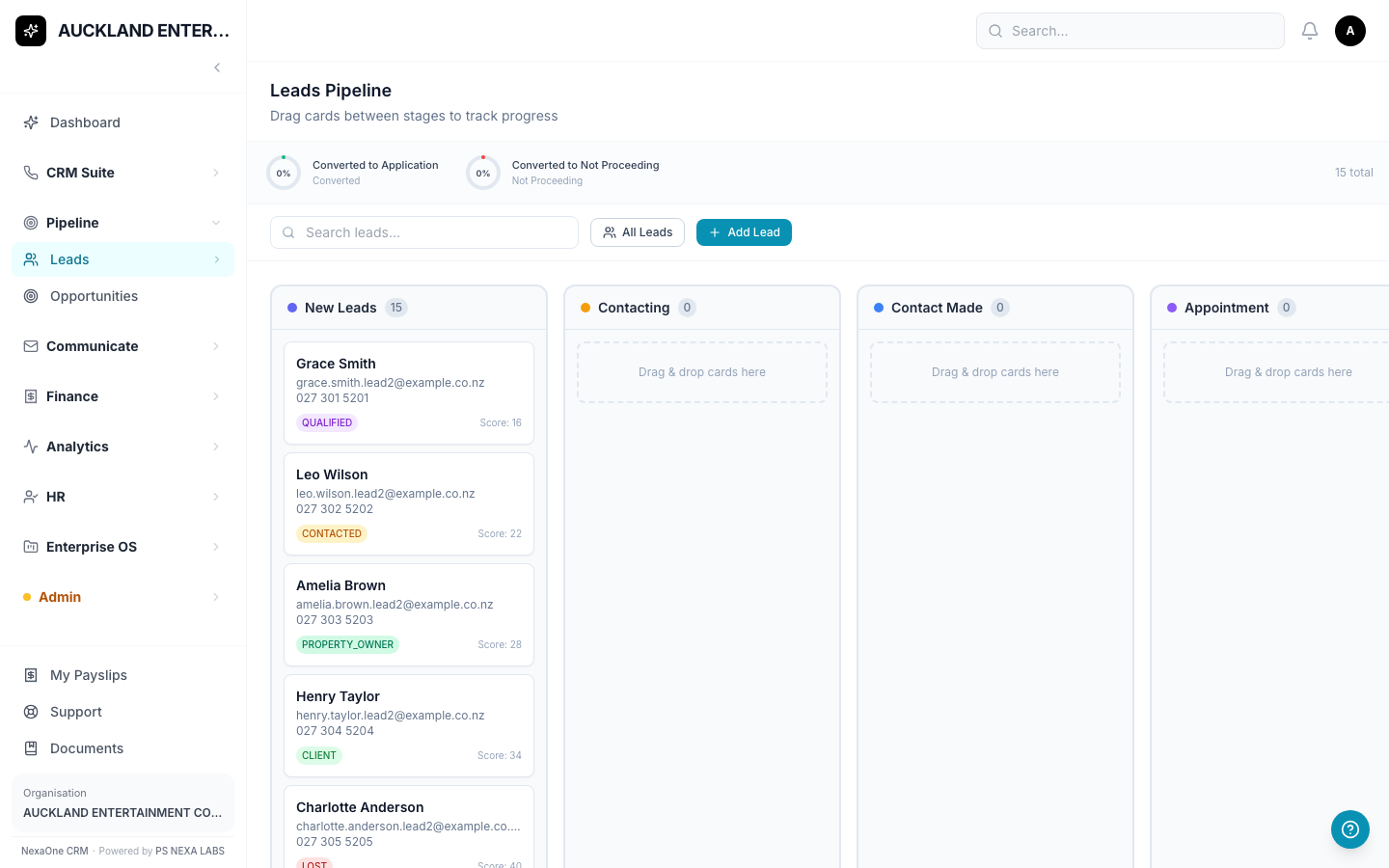
Click Pipeline, then Leads, on the left-hand menu.
You'll see a board, with each lead sitting in a column showing how far along you are with them — New, Contacting, Contact Made, Appointment, and so on.
How do I add a new lead?
- Click All Leads (or Add Lead) at the top of the board.
- Fill in their name — this is the only thing you must fill in.
- Add their email, phone, and where they came from if you know it.
- Save. A Lead Score (0–100) is calculated for you automatically — the more details you fill in, the higher it is. Under 40 shows grey (low), 40–69 shows amber (medium), 70+ shows green (high).
Moving a lead along
Drag a lead's card from one column to the next as you make progress with them. This board tracks where they are in your outreach (New, Contacting, Contact Made, and so on) — a separate thing from their overall status (New, Qualified, Contacted, Client, Lost), which you set on the lead's own page. The two don't always move together, which is expected — see Common Questions below.
Keeping a record of your calls and emails
Open a lead's own page (click their card, or find them under All Leads) and scroll to Activity Timeline to log a call, email, meeting, or note against them — click + Add Activity, choose the type, add a description and date, and save. Everything you log shows up here, newest first, so you've got a running history of every contact you've had with them.
Turning a lead into a Contact
Once a lead has become a real, paying client, open their page and click Convert to Contact. This links them to everything else in the system — loans, insurance, invoices, and so on.
2. Opportunities
What is an Opportunity?
A deal you're actively working on — for example, "Acme Corp — Refinance Deal" — tracked through the stages your organisation has set up (like New, Qualifying, Proposal Sent, Negotiation).
Where do I find it?
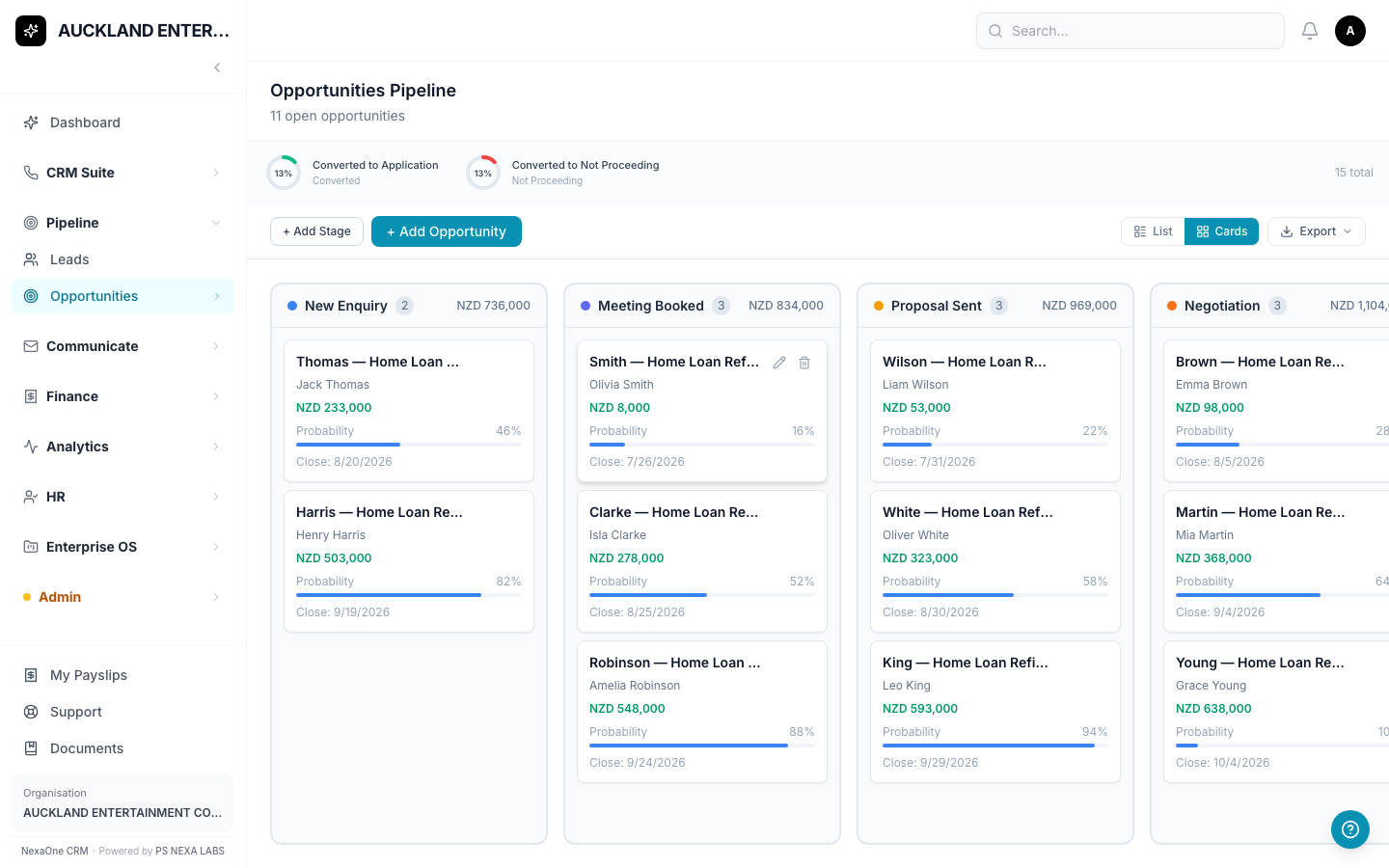
Click Pipeline, then Opportunities.
You can view this as a board (drag cards between stages) or as a list you can sort, search, and export.
How do I add a new opportunity?
- Click + Add Opportunity.
- Give it a title — this is the only thing you must fill in.
- If you like, add its value, how likely it is to close, and an expected close date.
- Save.
Tip: to add a new stage/column to the board, click + Add Stage at the top of the page.
About the percentages at the top of the board: those track whether a deal was marked Won or Lost (from its edit form), not which column its card is currently sitting in — so dragging a card between columns won't move those numbers by itself.
3. Loan & Insurance Applications
If your organisation offers Mortgage or Insurance, you'll also see Applications and Insurance Apps on the Pipeline menu. These are just quick links straight through to those boards — not separate screens of their own. See the Mortgage or Insurance guide for how to use them.
You'll also see Insurance Quotes here — a simple, read-only list of every quote and profile across your organisation, handy for a quick look without opening each one. Click any row to see its full details.
Adding Many at Once
If you already have a list of Leads or Opportunities written down somewhere, you can upload them all together:
- Click Admin, then Bulk Upload.
- Choose the Leads or Pipeline Opportunities tab.
- Download the sample file, fill it in, then upload it.
For Leads, only a name is required. For Opportunities, only a title is required. If you include a stage name for an Opportunity, spell it exactly as it appears on your board — anything that doesn't match one of your existing stages just gets dropped into the first column instead.
Common Questions
Where did "Leads" go on the main menu? It moved — Leads now lives under Pipeline, not under CRM Suite, so look there first.
I dragged a lead's card but its status didn't seem to change. There are two separate things tracked for a lead: its overall status (New, Qualified, Client, and so on) and which column it's in on this board. They don't always move together — check the lead's own page if you're unsure.
I can't find something I'm looking for — what do I do? Try the search box on whichever screen you're on. You can also click on any column title to sort a list.
I clicked a button and it says "Module Not Enabled." That feature hasn't been switched on for your organisation yet. It's not a mistake on your part — ask your manager or admin if you think you should have access to it.